
Last updated: October 2026 · Prices and ratings checked on Amazon in October 2026
Modern MacBook Pros have more ports than the 2016–2020 models, but most people still run out — there’s no USB-A, no Ethernet, and only so many Thunderbolt ports to share between charger, monitor and drives. A good hub or dock fixes that. We compared popular hubs on Amazon by port selection, display output, charging pass-through and buyer ratings, and picked five that suit different budgets and desks.
| Category | Pick | Amazon |
|---|---|---|
| Best Overall | UGREEN Revodok Pro 9-in-1 | Check Price |
| Best Budget | UGREEN 5-in-1 | Check Price |
| Best for Ethernet + SD | Anker 555 8-in-1 | Check Price |
| Best MacBook-Style Design | Satechi Pro Slim 7-in-1 | Check Price |
What Is the Best USB-C Hub for MacBook Pro?
The best USB-C hub for a MacBook Pro is one that adds the ports you actually miss — usually USB-A, HDMI, an SD reader and sometimes Ethernet — while passing power through so you only use one port on the laptop. For a single monitor, a 4K@60Hz HDMI hub is enough; for two monitors, step up to a Thunderbolt dock.
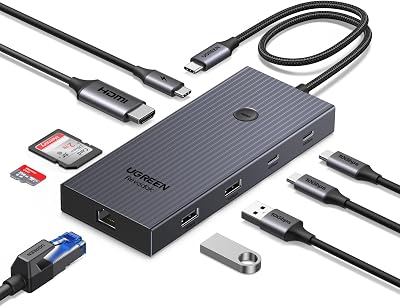
1. UGREEN Revodok Pro 9-in-1 USB-C Hub
The Revodok Pro turns one USB-C port into nine: a 4K@60Hz HDMI port, Gigabit Ethernet, SD and microSD readers, USB-A and USB-C data ports at up to 10Gbps, and a 100W PD input. That covers almost everything a MacBook Pro user plugs in on a typical day.
The 60Hz HDMI output matters if you use an external monitor — scrolling and mouse movement feel much smoother than on cheaper 30Hz hubs. UGREEN states the hub passes through up to 85W to the laptop (15W is reserved for the hub itself).
- ✅ 4K@60Hz HDMI output
- ✅ Gigabit Ethernet for stable connections
- ✅ SD and microSD readers built in
- ✅ 10Gbps data ports
- ❌ USB-C PD port is charge-only (no data or video)
- ❌ Pass-through is 85W, not the full 100W

2. UGREEN 5-in-1 USB-C Hub
With more than 32,000 ratings, this is one of the most popular hubs on Amazon. You get a 4K HDMI port, a 100W USB-C PD charging input and three USB-A ports — one 5Gbps port for a drive and two 480Mbps ports for things like a mouse, keyboard or webcam dongle.
It’s small enough to leave in a laptop bag. It skips Ethernet and an SD reader, so photographers and anyone on wired internet should look at the picks above or below.
- ✅ Very affordable
- ✅ Huge number of positive ratings
- ✅ Compact and travel-friendly
- ❌ Only one fast USB-A port
- ❌ No SD reader or Ethernet

3. Anker 555 USB-C Hub (8-in-1)
Anker’s 8-in-1 hub packs HDMI, Gigabit Ethernet, SD and microSD readers, a 10Gbps USB-C data port, two USB-A data ports and a USB-C PD input with up to 85W pass-through charging. A 7.48-inch attached cable gives you some flexibility on the desk.
HDMI runs at 4K@60Hz on laptops with DisplayPort 1.4 support and 4K@30Hz on DP 1.2 laptops, per Anker’s listing. Anker recommends a 100W charger to leave enough power for both the hub and the laptop, and covers it with an 18-month warranty.
- ✅ Ethernet plus SD and microSD
- ✅ 10Gbps USB-C data port
- ✅ 18-month warranty
- ❌ Only the HDMI port outputs video
- ❌ Needs a 100W charger for best results

4. Satechi 7-in-1 USB-C Hub Pro Slim
Instead of dangling on a cable, the Satechi Pro Slim plugs directly into the side of your MacBook and sits flush against it. The aluminum body comes in a Midnight finish and adds 4K HDMI, 100W charging pass-through, two 10Gbps USB-A ports, SD and microSD readers and a USB-C data port.
It’s designed specifically for MacBook Air and MacBook Pro models. Satechi notes a built-in safety shut-off that kicks in above 40°C or during abnormal current, and that some older M1–M3 Macs can’t exceed 4K@60Hz over HDMI.
- ✅ Plugs straight into the MacBook — no cable
- ✅ Premium aluminum finish
- ✅ Two 10Gbps USB-A ports
- ❌ Pricier than cable hubs
- ❌ Fit depends on MacBook port layout and case

5. CalDigit TS3 Plus Thunderbolt 3 Dock
If your MacBook Pro lives on a desk, a Thunderbolt dock is a different class of product. The TS3 Plus provides 15 ports, including two Thunderbolt 3 ports, DisplayPort 1.2, five USB-A ports, two USB-C ports, Gigabit Ethernet, a UHS-II SD slot, optical audio and separate audio in and out — and charges your laptop at up to 87W through one cable.
CalDigit lists support for two 4K@60Hz monitors or a single 5K display. Note the limits: it needs a Thunderbolt 3 or newer port, and CalDigit states M1 Macs can’t run dual displays over Thunderbolt.
- ✅ 15 ports from one cable
- ✅ Dual 4K@60Hz monitor support
- ✅ Fast UHS-II SD slot
- ❌ Expensive
- ❌ Needs its own power supply and desk space
- ❌ M1 Macs limited to one display
USB-C Hub Comparison: Ports, Display and Charging
The biggest differences between these hubs are display refresh rate, whether you get Ethernet and an SD reader, and how much power passes through to the laptop. Use the table to match the hub to your setup.
| Product | Price | Rating | Key ports | Best For | Amazon |
|---|---|---|---|---|---|
| UGREEN Revodok Pro 9-in-1 | ~$30 | 4.5/5 | 4K@60 HDMI, Ethernet, SD/TF, 10Gbps USB | Best Overall | Check Price |
| UGREEN 5-in-1 | ~$12 | 4.6/5 | 4K HDMI, 3 USB-A, 100W PD | Best Budget | Check Price |
| Anker 555 8-in-1 | ~$26 | 4.3/5 | 4K@60 HDMI, Ethernet, SD/microSD, 85W | Best for Ethernet + SD | Check Price |
| Satechi Pro Slim 7-in-1 | ~$80 | 4.4/5 | 4K HDMI, 2×10Gbps USB-A, SD/microSD | Best MacBook-Style Design | Check Price |
| CalDigit TS3 Plus | ~$207 | 4.4/5 | 15 ports, dual 4K, 87W charging | Best Desk Dock | Check Price |
Prices last checked: October 2026. Amazon prices change often, so check the current price before you buy.
How to Choose a USB-C Hub for Your MacBook Pro
1. Count the ports you actually use
List what you plug in every week — flash drives, an SD card, a wired keyboard, Ethernet, a monitor. Buy for that list, not the biggest number on the box.
2. Check the display output
For an external monitor, look for 4K@60Hz HDMI. 4K@30Hz works for presentations but feels laggy for everyday use. For two monitors on a MacBook Pro, a Thunderbolt dock is the most reliable route, and some base-chip MacBooks support only one external display — check Apple’s specs for your model.
3. Look at pass-through charging
Most hubs keep around 15W for themselves, so a “100W” hub usually delivers about 85W to the laptop. Use a charger rated at or above the hub’s maximum input.
4. Hub or dock?
A bus-powered hub is small and portable. A Thunderbolt dock has its own power supply, more ports and better multi-monitor support, but it stays on the desk.
5. Plan the rest of the desk
If you connect to a monitor, raise the laptop to eye level too — our best laptop stands for desk guide pairs well with a hub.
More USB-C Hub Guides
Explore our explainers on Thunderbolt, charging, monitors and troubleshooting:
USB-C Hubs by Need
USB-C dongle for MacBook travel
A compact USB-C dongle for MacBook travel should be small and light. The UGREEN 5-in-1 is the easiest to leave in a laptop bag, and the Satechi Pro Slim plugs straight into the side of your Mac.
Multiport adapter MacBook owners use for the office
A multiport adapter MacBook users rely on every day should combine USB-A, HDMI, an SD reader and charging. The UGREEN Revodok Pro 9-in-1 and Anker 555 cover all of these.
USB-C hub with HDMI for an external monitor
Every pick includes a USB-C hub with HDMI or a display output. Look for 4K@60Hz support — the Revodok Pro offers it, and the Anker 555 reaches 4K@60Hz on laptops with DisplayPort 1.4.
USB-C hub with Ethernet
Need wired internet? The UGREEN Revodok Pro and Anker 555 are each a USB-C hub with Ethernet (Gigabit RJ45), and the CalDigit dock adds Ethernet too.
Thunderbolt dock for MacBook desks
A Thunderbolt dock for MacBook desks, like the CalDigit TS3 Plus, connects power, two monitors and all your accessories through one cable.
Frequently Asked Questions
Do I need a USB-C hub for a MacBook Pro?
Recent 14 and 16-inch MacBook Pro models include HDMI, an SD slot and several Thunderbolt ports, so many owners only need a hub for USB-A devices, Ethernet or extra ports. Older 13-inch and 2016 to 2020 models with only USB-C ports benefit much more from a hub.
Can a USB-C hub damage my MacBook?
A reputable hub used with a proper charger is very unlikely to damage a MacBook. Problems tend to come from poorly made, uncertified hubs. Stick with established brands, avoid overloading the hub with power-hungry devices, and unplug it if it becomes unusually hot.
Will a USB-C hub charge my MacBook Pro?
Yes, if it has a USB-C Power Delivery input. Plug your charger into the hub and it passes power through to the laptop, minus the power the hub uses itself. A 100W hub typically delivers around 85W, which suits most MacBook Pro workloads.
Can I connect two monitors to a MacBook Pro with a USB-C hub?
Most single-cable USB-C hubs output to one monitor on a Mac, because macOS does not support the MST technique many hubs use for dual displays. For two monitors, use a Thunderbolt dock or connect monitors to separate ports, and confirm how many displays your chip supports.
What is the difference between a USB-C hub and a docking station?
A hub is small, powered by the laptop and built for portability. A docking station has its own power supply, more ports, stronger charging and better multi-monitor support, and is meant to stay on a desk. Thunderbolt docks also offer higher bandwidth.
Final Verdict
The UGREEN Revodok Pro 9-in-1 gives most MacBook Pro owners every port they need, including 4K@60Hz HDMI and Ethernet, at a reasonable price. Pick the UGREEN 5-in-1 if you just need USB-A and HDMI, the Satechi Pro Slim for a cable-free look, or the CalDigit TS3 Plus if you want a one-cable desk setup with two monitors.
| If you want… | Buy this | Link |
|---|---|---|
| The best all-round hub | UGREEN Revodok Pro 9-in-1 | Check Price |
| Basic ports for the lowest price | UGREEN 5-in-1 | Check Price |
| A trusted brand with Ethernet | Anker 555 8-in-1 | Check Price |
| A cable-free hub that matches your Mac | Satechi Pro Slim 7-in-1 | Check Price |
| A full desk dock for two monitors | CalDigit TS3 Plus | Check Price |